Framer Is More Than Landing Pages
Most people think of Framer as a tool for beautiful landing pages and marketing sites. And it's great at that. But Framer's component system, interactions, and CMS make it capable of much more.
The missing piece has always been authentication. Without it, you can't build anything that requires users to sign in. Auth Plugin fills that gap.
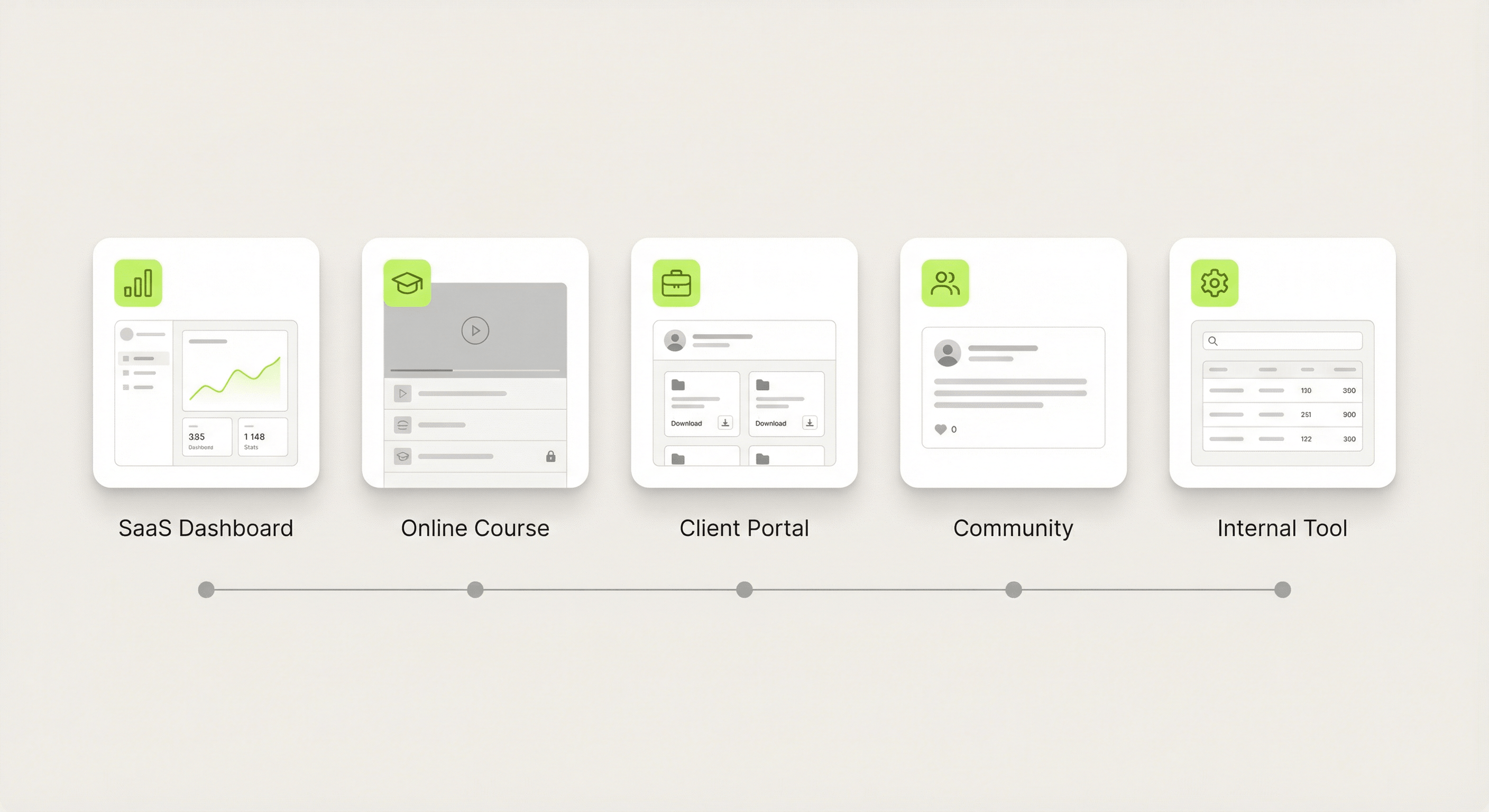
Here are five real-world use cases that show what becomes possible when you add auth to your Framer site.
Use Case 1: SaaS Marketing Site + Dashboard
The scenario: You're building a SaaS product. Your marketing site (landing page, features, pricing) is built in Framer. You want users to sign up and access a dashboard — all within the same Framer project.
The setup:
• Public pages: /, /features, /pricing, /sign-in, /sign-up
• Protected pages: /app, /app/settings, /app/billing
• Auth method: Email/password + Google OAuth
• Components used: Sign In Form, Sign Up Form, Profile Form, Avatar, Identity Label, Sign Out Button, Code Overrides
Why it works: Your marketing site and app live in one Framer project. No separate frontend for the dashboard. Users sign up on /sign-up, get redirected to /app, and see their personalized dashboard. Google OAuth reduces sign-up friction for users who don't want to create a new password.
Key insight: Use IdentityName in the dashboard header to show "Welcome, Sarah" and ShowWhenAuthenticated on navigation items that should only appear for logged-in users.
Use Case 2: Online Course Platform
The scenario: You're selling an online course. Free users can browse the course catalog and preview lessons. Paid members can access full lesson content.
The setup:
• Public pages: /, /courses (listing), /courses/preview
• Protected pages: /courses/lesson-*, /dashboard
• Auth method: Email/password + Magic Link
• Components used: Sign In Form, Sign Up Form, Magic Link Form, Profile Form, Avatar
Why it works: The course catalog is public — great for SEO and discoverability. Individual lessons are protected. Students sign up, get access, and can sign in with Magic Link for a frictionless return experience (they're often coming from an email notification anyway).
Key insight: Magic Links are perfect for course platforms because students often access lessons from email notifications ("New lesson available!"). One click in the email and they're on the lesson page.
Use Case 3: Freelancer/Agency Client Portal
The scenario: You run a design agency. You want a branded portal where clients can view project updates, download deliverables, and communicate with your team.
The setup:
• Public pages: / (agency website), /sign-in
• Protected pages: /portal, /portal/*
• Auth method: Magic Link (clients don't need passwords)
• Components used: Sign In Form, Magic Link Form, Identity Label, Avatar, Sign Out Button
Why it works: Clients don't need to remember a password — they just enter their email and click the magic link. The portal feels premium and branded because you've customized the emails with your agency's logo and colors. Each client sees their name in the header via Identity Label.
Key insight: Magic Link is ideal for client portals. Clients visit infrequently and will forget passwords. A magic link sent to their email is the lowest-friction option.
Use Case 4: Private Community or Premium Newsletter
The scenario: You run a newsletter or community. Free subscribers can read public articles. Premium members get exclusive content, resources, and tools.
The setup:
• Public pages: /, /blog (free articles), /sign-in, /sign-up
• Protected pages: /premium, /premium/*, /resources
• Auth method: Email/password
• Components used: Sign In Form, Sign Up Form, Code Overrides (ShowWhenAuthenticated, ShowWhenGuest)
Why it works: Free visitors browse your public content and see CTAs to sign up. Once signed in, ShowWhenAuthenticated reveals premium content sections, download buttons, and exclusive resources. ShowWhenGuest hides these and shows "Sign up for access" prompts instead.
Key insight: Code overrides are powerful for content sites. Instead of separate pages for free vs. premium content, you can have one page that shows different content based on auth state. This is great for teasing premium content to free users.
Use Case 5: Internal Team Tool or Company Wiki
The scenario: Your company needs an internal tool — a wiki, a project tracker, an onboarding guide — and you want to build it quickly without a backend.
The setup:
• Public pages: /sign-in (minimal, just the login form)
• Protected pages: Everything else (/, /wiki, /projects, /team)
• Auth method: Google OAuth (everyone has a company Google account)
• Components used: Sign In Form, Identity Label, Avatar, Sign Out Button
Why it works: Google OAuth means team members sign in with their existing work accounts — no separate credentials to manage. Every page is protected, so the entire site is private. New team members are added by simply having them sign in with their Google account.
Key insight: For internal tools, protect the homepage itself. There's no public-facing content. The sign-in page is the only public page. Google OAuth with company Google accounts means zero password management.
Getting Started with Your Use Case
No matter which use case matches yours, the process is the same:
1. Install Auth Plugin from the Framer Marketplace.
2. Run the Setup Wizard to connect your workspace and insert scripts.
3. Create your auth pages (sign-in, sign-up, forgot/reset password).
4. Add Protected Pages for routes that require login.
5. Customize — Set your branding, choose your auth method, and design your dashboard.
6. Publish and test on your live site.
The entire setup takes minutes. What used to require a backend developer, a database, and weeks of work is now a plugin install and a few drag-and-drops.
Which use case are you building? Install Auth Plugin and get started today.